Do you need an iCIMS account to apply for a job?
Yes. To submit an application on an iCIMS career site you need your own online profile there. iCIMS's job seeker FAQ answers the guest question directly: "No, you must have your own online profile in the system to complete a job application." You can usually browse and search jobs without logging in, but a login is always required when applying. The profile is built as part of the application.
How you get a profile
iCIMS says that if you're a new applicant you create an online profile by clicking Apply for this job online on any listed job and following the steps. Its candidate guide describes the sequence:
- If you aren't logged in you may land on an Enter Your Email page. iCIMS says the system uses it to identify whether you're a new applicant or a returning applicant with an existing profile and sends you to the right next step.
- If you're new, you enter your name and email and create a login and password.
- You can also build the profile by uploading a resume or signing in with a social account (Facebook, Google, LinkedIn or Microsoft), where the employer offers it.
- You continue to the profile page, then the application questions.
The guide adds a warning: email addresses with accented characters (for example josé@email.com) are not supported in iCIMS.
Do you already have a profile?
iCIMS explains how to tell. Once you enter a previously used email, the system either sends you to the login page or tells you the email is already attached to a profile. It doesn't allow multiple profiles with the same email address. A profile can only be associated with one email, and iCIMS asks you not to create additional profiles with different addresses. If you're unsure, you can try your other addresses on the career site or ask the company.
To log back in, click Log back in! at the top right of the career site. To reset a forgotten password, enter your username or email, select Reset your password and choose Send Email. If the reset email doesn't arrive, check spam or junk.
Applying without applying: Talent Community
Some companies let you create a profile without applying to a job, through a link such as Join our Talent Community, Connect with us or Submit your resume. For a Talent Community profile, iCIMS says to keep the confirmation email, because its Manage Profile link is the only way to manage that profile later.
Practical tips
- Use one email address you'll keep, and write it down in your tracker.
- iCIMS describes profiles in terms of each company's career site, so plan on setting one up per employer unless a career site tells you otherwise.
- Look in spam for password and confirmation emails. iCIMS notes each company sends from its own address, so you may need to approve several senders.
How Applier handles iCIMS profiles
We fill in and submit iCIMS applications for you on the employer's own career site. Employer emails such as verification codes go to the application mailbox Applier gives you, so they don't clutter your own inbox. Read how Applier works and auto-applying to iCIMS jobs, or see the full flow in how to apply on iCIMS.
Related guides
- How to apply on iCIMS, step by step
- How to check your iCIMS application status
- What an applicant tracking system does with your resume
Real interview invites from members' inboxes
See more interview invites →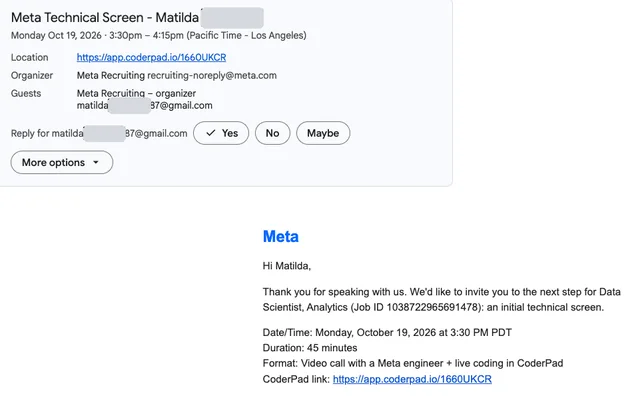
 Meta
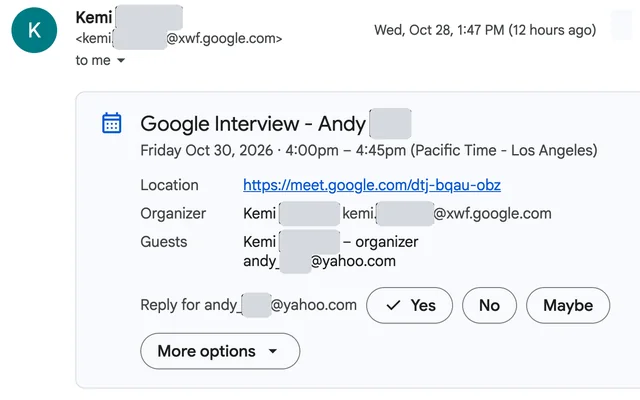
 Google
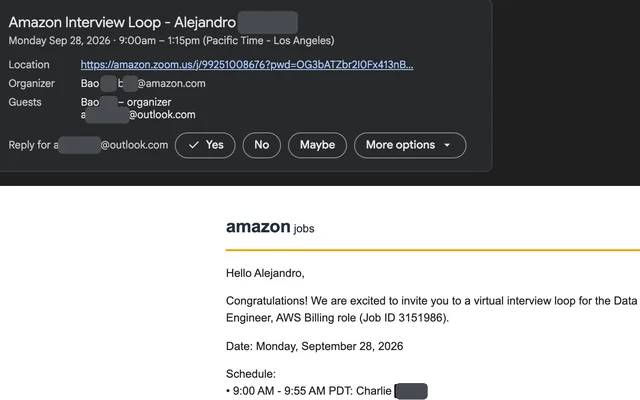
 AWS
Frequently asked questions
Can I apply on iCIMS as a guest?
No. iCIMS's job seeker FAQ says you must have your own online profile to complete an application. You can usually search and review jobs without logging in, but applying always requires a login.
Why does iCIMS ask for my email address after I click Apply?
iCIMS uses it to tell whether you are a new applicant or a returning one with an existing profile, then sends you to the right next step.
Can I have two iCIMS profiles with different emails?
iCIMS asks you not to. The system doesn't allow multiple profiles with the same email, a profile can only be tied to one email, and the company can tell you whether you already have one.
Sources
- Job Seeker Help, iCIMS, 2026
- Candidate Guide to iCIMS Career Portals, iCIMS Community, 2023