How to apply on iCIMS, step by step
To apply on iCIMS, open the job on the employer's career site, select Apply for this job online, enter your email so the system can find or create your profile, upload your resume, fix the fields it fills in, answer the screening questions and submit. Wait for the confirmation page. iCIMS lets each company customize the steps and button names, so yours may differ, but the order below is the one iCIMS documents.
Step by step
- Open the job. Click the job title in the career portal. If you've applied to this company before, log in to your existing profile first.
- Select Apply for this job online. If you're not logged in you may be asked for your email address, which tells the system whether you are new or returning.
- Create or log in to your profile. New applicants enter a name and email and create a login and password, or sign in with a social account where offered. See do you need an iCIMS account to apply.
- Upload your resume first. iCIMS's guide says options include My Computer, Google Drive, Dropbox or OneDrive, and that to take full advantage of resume parsing you should upload before completing other fields. You can often start without a resume, but may need one before finishing.
- Update the candidate profile page. Fill in or correct every field the parser filled in.
- Answer the questions. Later pages cover screening questions, EEO information and job-specific questions.
- Submit and check the confirmation. A confirmation message tells you the application was submitted successfully. Some companies then offer optional new-job notifications.
Fields marked with an asterisk are required. At certain steps you can click Finish Later and return to the same place.
Make your resume parse cleanly
iCIMS's job seeker FAQ gives formatting advice for parsing: put your name and contact information within the body of your resume rather than within the header or footer, and avoid putting important text in tables, text boxes or shapes, images or annotations. If you're tailoring the file to the job, our guide on tailoring your resume covers keeping wording honest, and what an applicant tracking system does with your resume explains why plain text helps.
Finishing later
If you didn't finish, iCIMS says to use the job seeker dashboard in your profile. The Actions column shows a Continue Application button next to every incomplete application, which resumes where you left off. Depending on the career site, the column may be labelled differently or not appear at all.
Applying with a social account
Where offered, you can apply with a Facebook, Google, LinkedIn or Microsoft account. The guide says this gives iCIMS permission to access limited profile information such as first name, last name and email, which transfers into the application, and a Disconnect link lets you remove the connection. Check the transferred fields before submitting.
After you submit
- Save the confirmation and note the date.
- Check your dashboard for the status; see how to check your iCIMS application status.
- Check spam for the company's emails. The FAQ says automated emails such as application confirmations and interview invitations can be caught by spam filters.
How Applier handles iCIMS applications
We fill in and submit iCIMS applications for you, with a resume and cover letter tailored to each job. Questions are answered from your profile and any answer Applier filled in is listed so you can check it. Employer emails such as verification codes go to the application mailbox Applier gives you. You choose Review, Hybrid or Auto mode, and an application that can't be finished shows as Failed. See how Applier works and auto-applying to iCIMS jobs.
Related guides
- Do you need an iCIMS account to apply for a job?
- How to check your iCIMS application status
- How to tailor your resume to a job description
Real interview invites from members' inboxes
See more interview invites →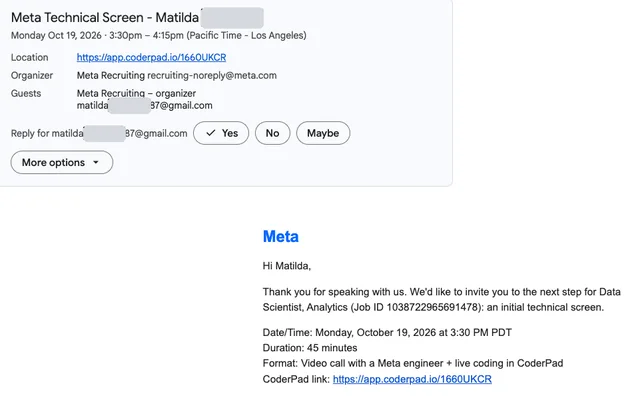
 Meta
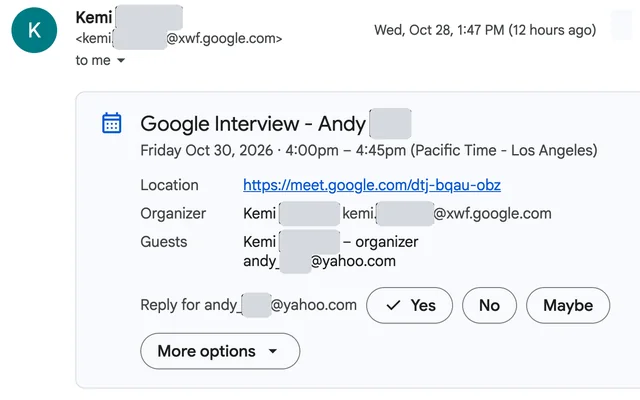
 Google
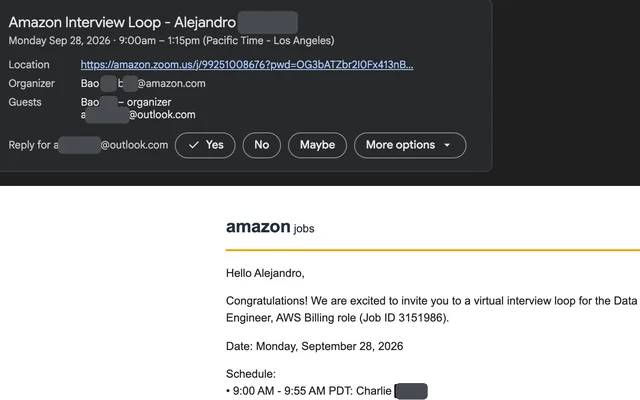
 AWS
Frequently asked questions
What order should I fill in an iCIMS application?
iCIMS's guide says to upload your resume before completing other fields, because the system may use it to populate profile fields. Then correct the profile page, answer screening and job-specific questions and submit.
How do I finish an iCIMS application later?
Click Finish Later at the steps that offer it, then log in and use the Continue Application button in the Actions column of your dashboard. Labels vary by career site.
How should I format my resume for iCIMS?
iCIMS advises putting your name and contact information in the body of the resume rather than the header or footer, and avoiding important text in tables, text boxes, shapes, images or annotations.
Sources
- Candidate Guide to iCIMS Career Portals, iCIMS Community, 2023
- Job Seeker Help, iCIMS, 2026