Applier in ChatGPT and Claude
You can use Applier from inside ChatGPT and Claude. Ask an assistant to find jobs, check whether a posting is still live, show who is likely hiring for a role, or list what is waiting for your approval in Applier. Searching and checking jobs needs no account; managing your Applier account needs you to sign in with it.
What you can do
- Search jobs. Ask for roles by title, place, pay or how recently they were posted, for example "Find remote product designer jobs posted this week". Results show the company, location, pay when the employer gives it and how long ago the job was posted.
- Check a posting. Paste a job link and ask whether it is still open. You get a verdict (live, closed, stale or reposted) and a one-line reason. It's the same check as the free ghost job checker.
- See if a company is hiring. Ask whether a company is hiring to see how many open roles it has, how many were posted in the last week and how many look stale or reposted.
- Find who is likely hiring. For a job in the catalog, the assistant shows up to three people who are likely to hire for it, with their titles and profile links. Contact details are never shown.
- Manage your Applier account. When you sign in, ask what's waiting for your approval, see your recent applications and replies, and get links to open them in Applier.
Approvals stay on getapplier.com
Nothing is sent from a chat. When you ask the assistant to approve an application, it gives you a link, and you approve it on getapplier.com. Applications and hiring-manager emails go out only after you approve them, or in the mode you chose, and the emails are sent from your own Gmail. Declining an item asks you to confirm first. Applier doesn't sell or start payments inside an assistant: plans and billing are managed on getapplier.com.
Connect Applier to Claude
- In Claude, open Customize → Connectors.
- Choose Add, then Add custom connector.
- Give it a name, enter the address
https://getapplier.com/mcp/claudeand choose Continue. - Under Authentication, choose Sign in when needed. Claude pre-selects "No sign-in" because job searches and posting checks work without an account, but with that choice Claude can never ask you to sign in to Applier.
- Choose Add.
Searching and checking jobs works without signing in. The first time you ask about your Applier account, Claude asks you to connect it with your Applier email.
Connect Applier to ChatGPT
Custom MCP servers need a ChatGPT plan or workspace that allows them.
- In ChatGPT, open Plugins.
- Choose Add, then Add custom MCP server.
- Enter the address
https://getapplier.com/mcp/chatgpt. - Under Authentication, choose OAuth or no authentication.
- Tick the box to confirm you understand the risks of a custom server, then choose Create.
- Choose Use without an account, or sign in with your Applier email.
Searching and checking jobs works without signing in. The first time you ask about your Applier account, ChatGPT shows its own sign-in prompt.
Other AI assistants
Assistants that support remote MCP servers can connect to https://getapplier.com/mcp. The address and the sign-in work the same way.
Your data
When you sign in, the assistant can see the same account information you see in Applier, such as your applications and review queue, so it can answer questions about them. Job searches and posting checks use Applier's own job data, and no account is needed. You can disconnect Applier from the assistant's settings at any time. See the Privacy Policy, and answers to common questions.
Need a hand?
Email [email protected]. To see how Applier applies for you from start to finish, read how Applier works.
Real interview invites from members' inboxes
See more interview invites →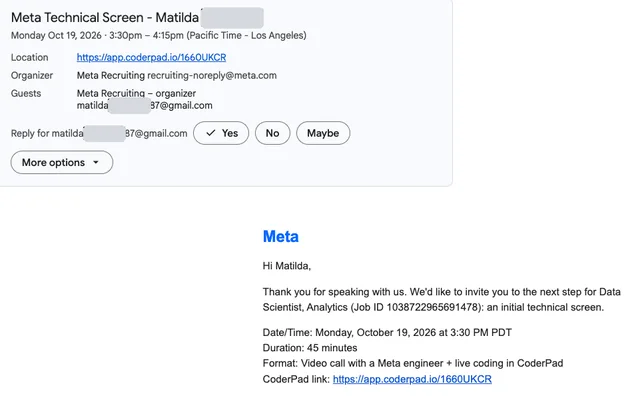
 Meta
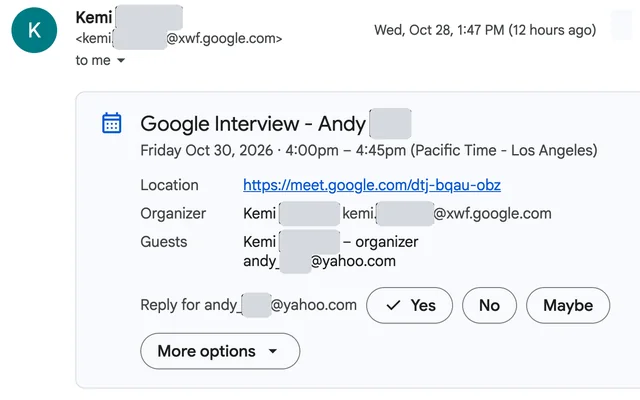
 Google
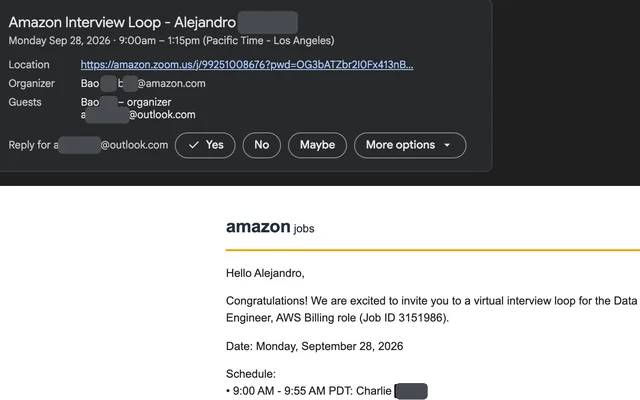
 AWS